Installation Guides
Step-by-step instructions to set up iThrill on any device.
- From the home screen of your device, hover over the Find option.

- Click Search.
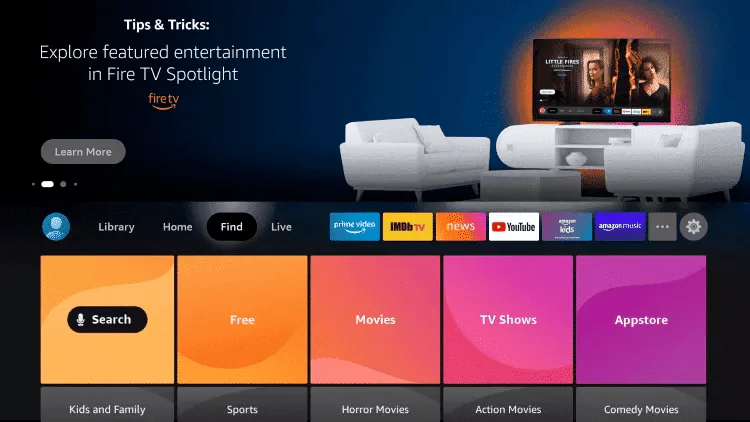
- Search for and select Downloader.
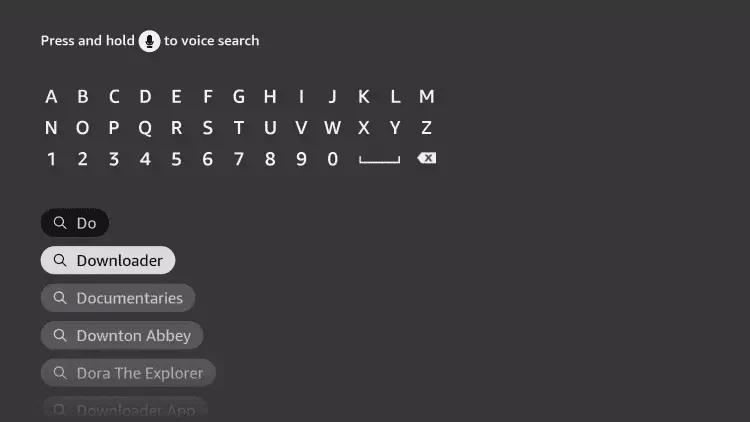
- Choose the Downloader app (Orange Icon).
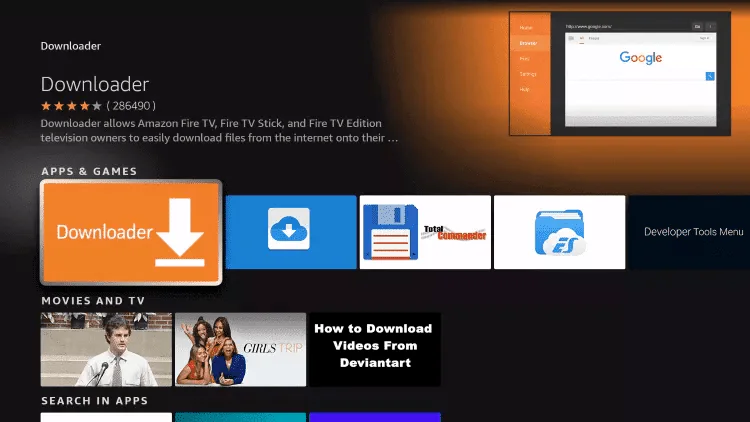
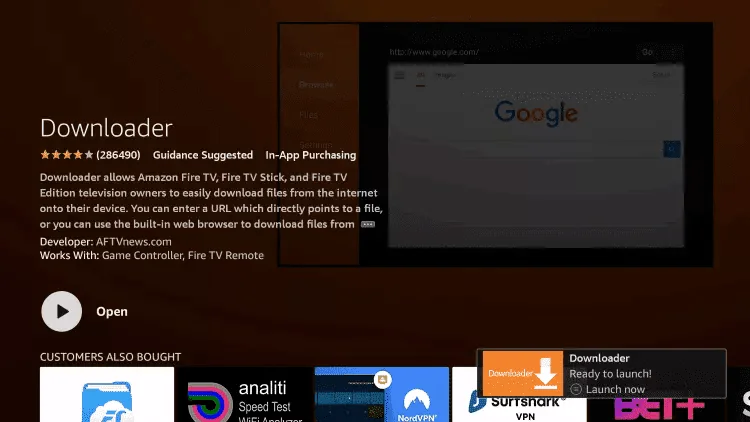
- Click Download.
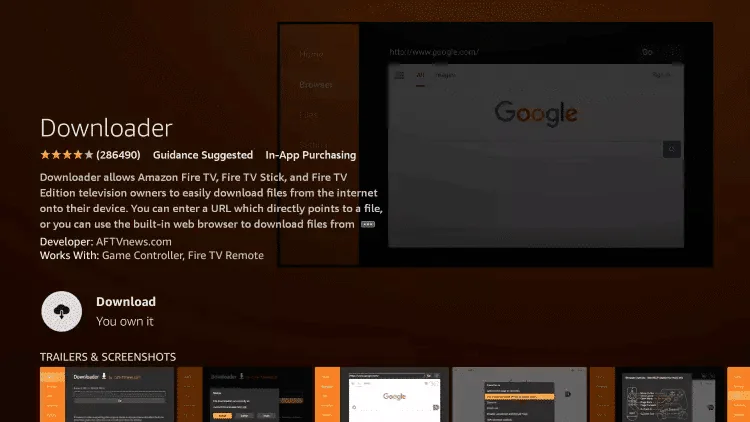
- Once installed, click Open.
- Return to home screen → Open Settings.

- Click My Fire TV.

- Choose Developer options.

- Click Install unknown apps.
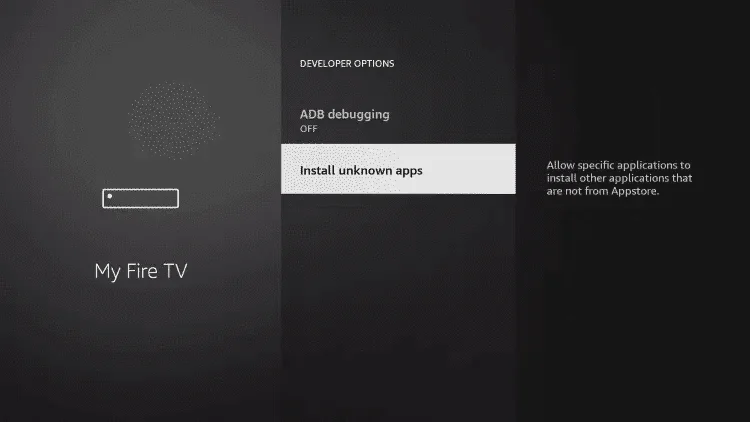
- Find Downloader and turn it ON.

- Launch Downloader and click Allow.
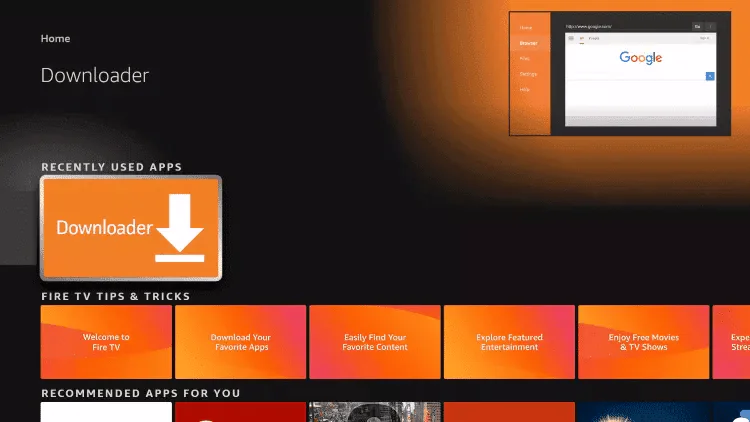
- Enter Code:
6821160and click GO.

- Wait for the file to download.
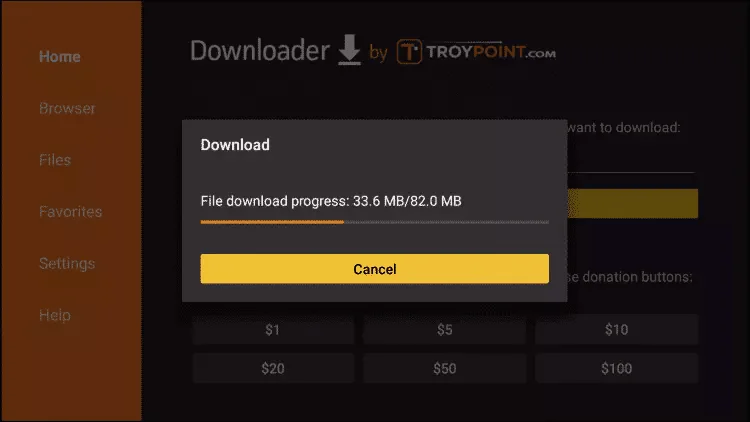
- Click Install.

- Open the app → Click Add Playlist.

- Enter the Username & Password sent to your email.

- Click LOGIN. You are done!

Alternative App Code:
If the first code doesn't work, try:
If the first code doesn't work, try:
1223525
Follow steps 1–12 above to install Downloader, then:
- Enter URL:
https://shorturl.at/hsMW1

- Click Install and Open the App.
- Go to Account to see your Device ID and Key.
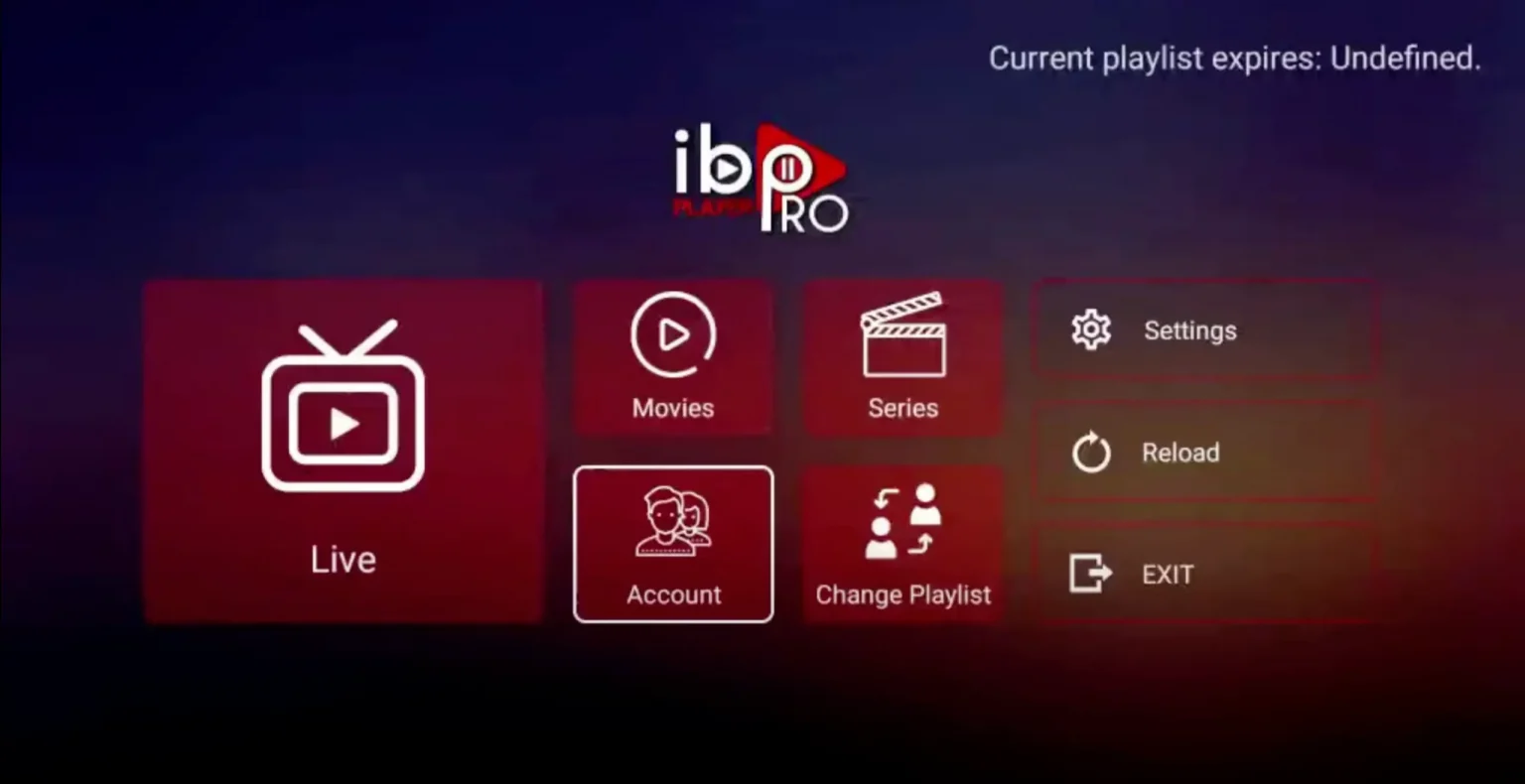
- On your phone/PC, visit iboproapp.com -> "Manage Playlists".
- Login with your Device ID & Key.
- Click Add XC Playlist.

- Enter the Server URL, Username & Password provided in your email.

- Restart the App on your TV.
- Open Downloader and enter:
https://www.iptvsmarters.com/smarters.apk
Alternative:https://bit.ly/3sgJDAK - Click Go and wait for the download.
- Click Install then Done.
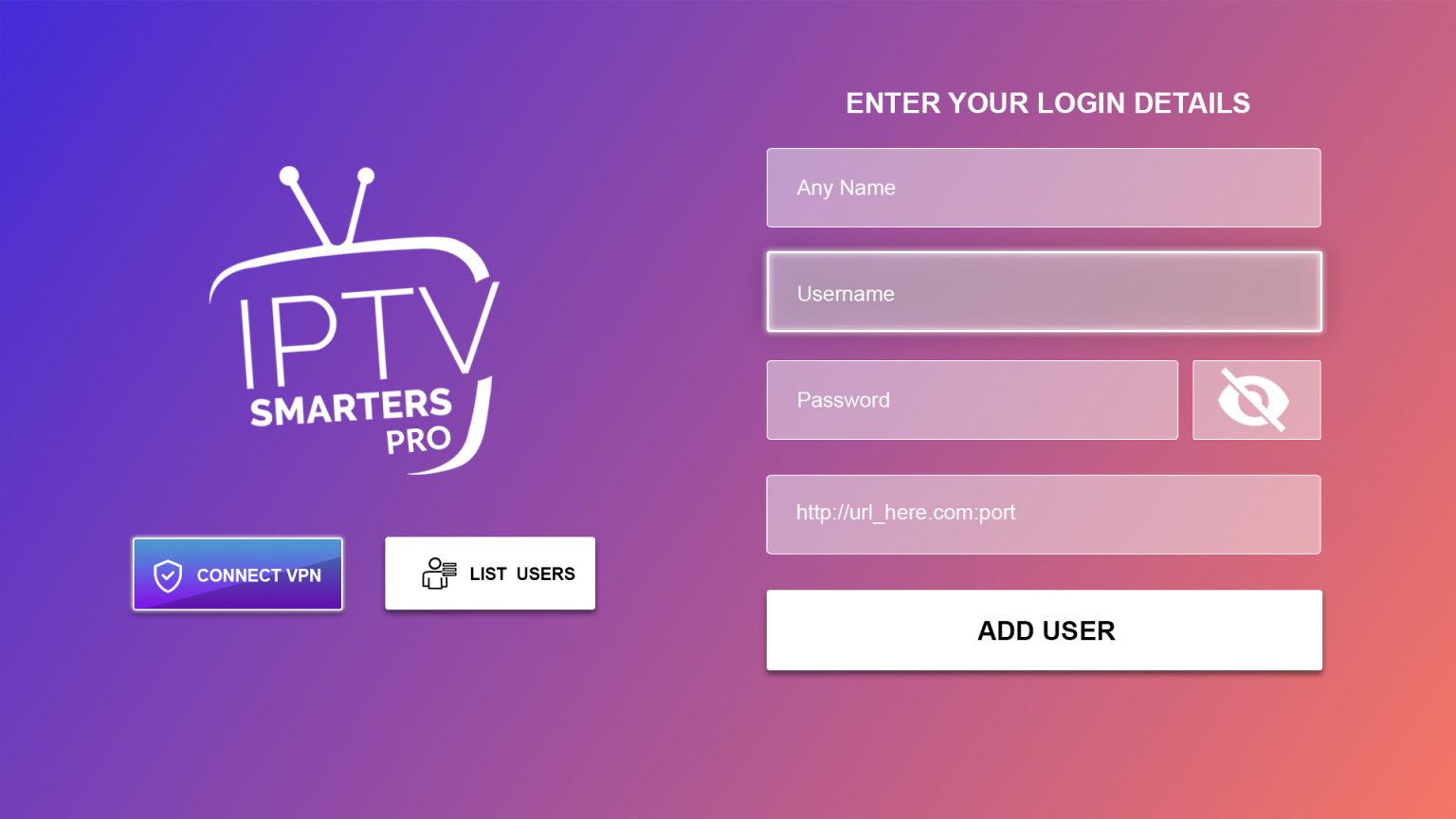
- Open Smarters Pro → Select Login with Xtream Codes API.

- Enter the details sent to your email.
- Open Downloader and enter Code:
366972or719692. - Download and Install TiviMate.
- Open TiviMate → Select Add Playlist.
- Select Xtream Codes login → Next.
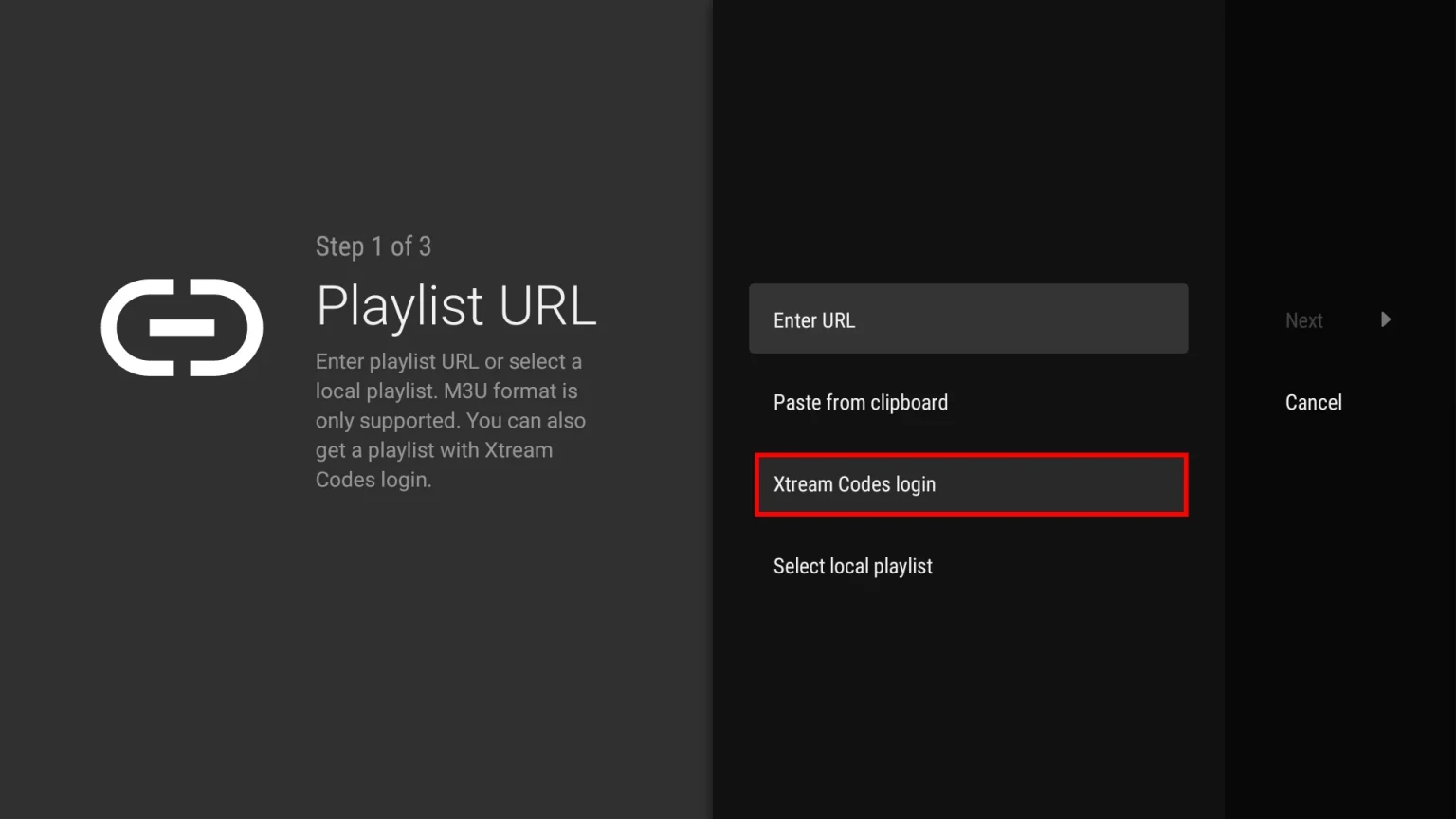
- Enter Server Address, Username & Password from your email.

- Go to the Roku Channel Store. Search for “IBO Player Pro” → Add Channel.

- Open the App → Click on “Account” to view your MAC Address and Device Key.
- Visit iboproapp.com → Click “Manage Playlists”.

- Enter your MAC & Key → Click “Login”.

- Click “Add XC Playlist”.
- Enter playlist name
IPTVTHRILL, plus Server, Username, and Password.
- Go back to your Roku. Restart app if needed.
Recommended Apps:
- IPTV Smarters Pro
- IBO Player
- Flix IPTV
- Smart IPTV (SIPTV)
Simply search for one of these apps in your TV's App Store, install it, and login using the Xtream Codes API method with the details sent to your email.
- Download VLC Media Player.
- Open VLC and go to Media > Open Network Stream.
- Paste the M3U URL provided in your email.
- Click Play.
Download IPTV Smarters Pro or GSE Smart IPTV from the App Store. Login using "Xtream Codes API" with your username, password, and server URL.
Download IPTV Smarters Pro or TiviMate from the Google Play Store. Login using "Xtream Codes API" with your subscription details.
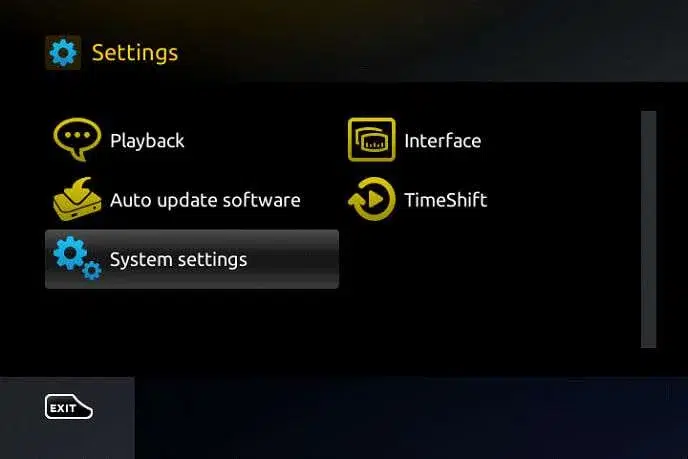
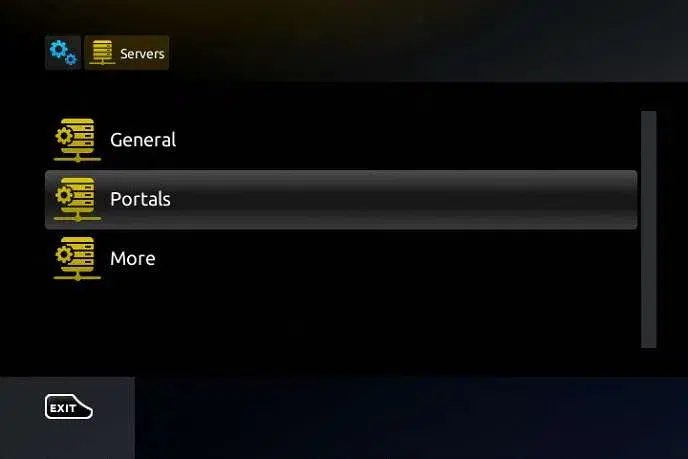
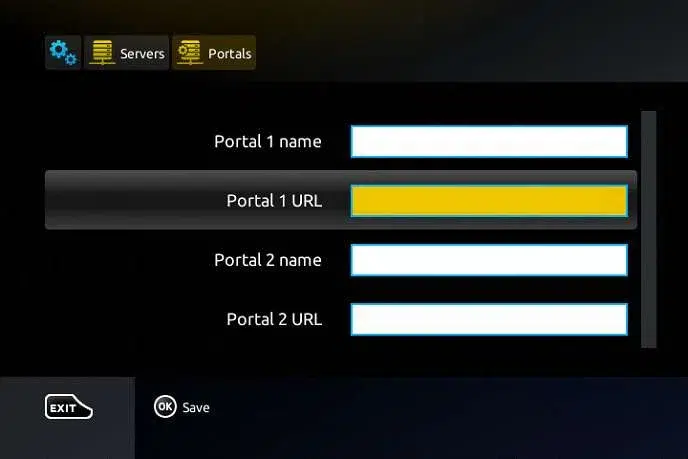
- Go to Settings > System Settings > Servers > Portals.
- Portal 1 Name:
iThrill - Portal 1 URL:
(URL provided in email) - Send us your MAC Address to activate.
- Restart Portal.
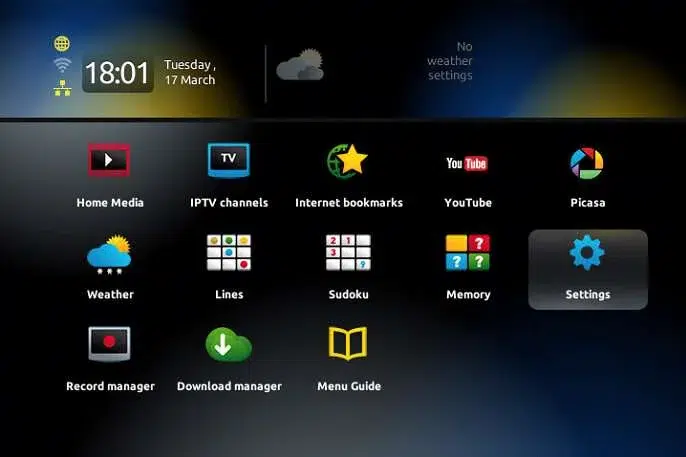
- Open MyTVOnline 2/3.
- Go to Connections > Add Portal.
- Nickname:
iThrill. URL:(from email). - Uncheck "Login Required".
- Send us your MAC Address (starts with 00:1A:79...).
- Connect.


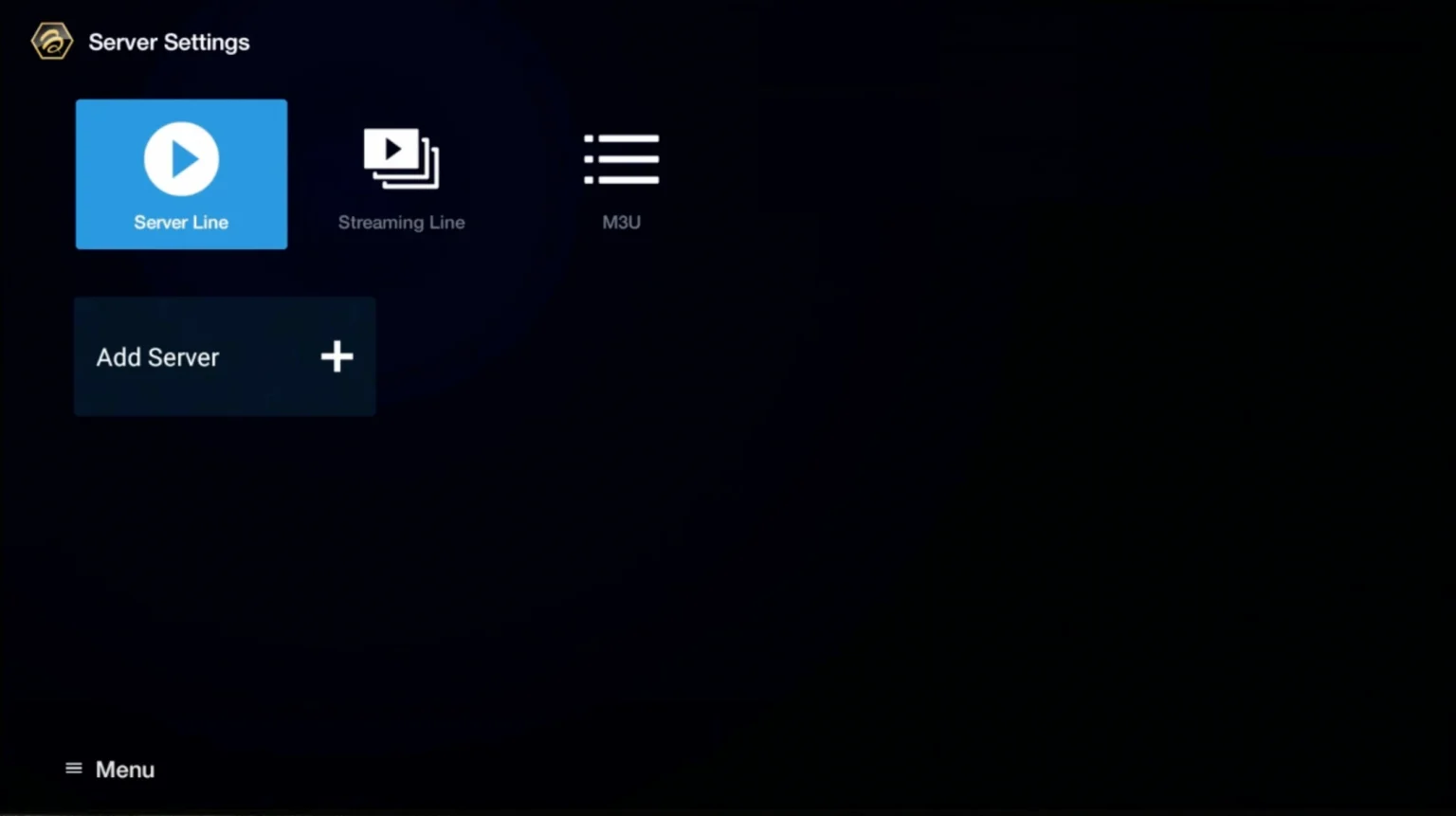
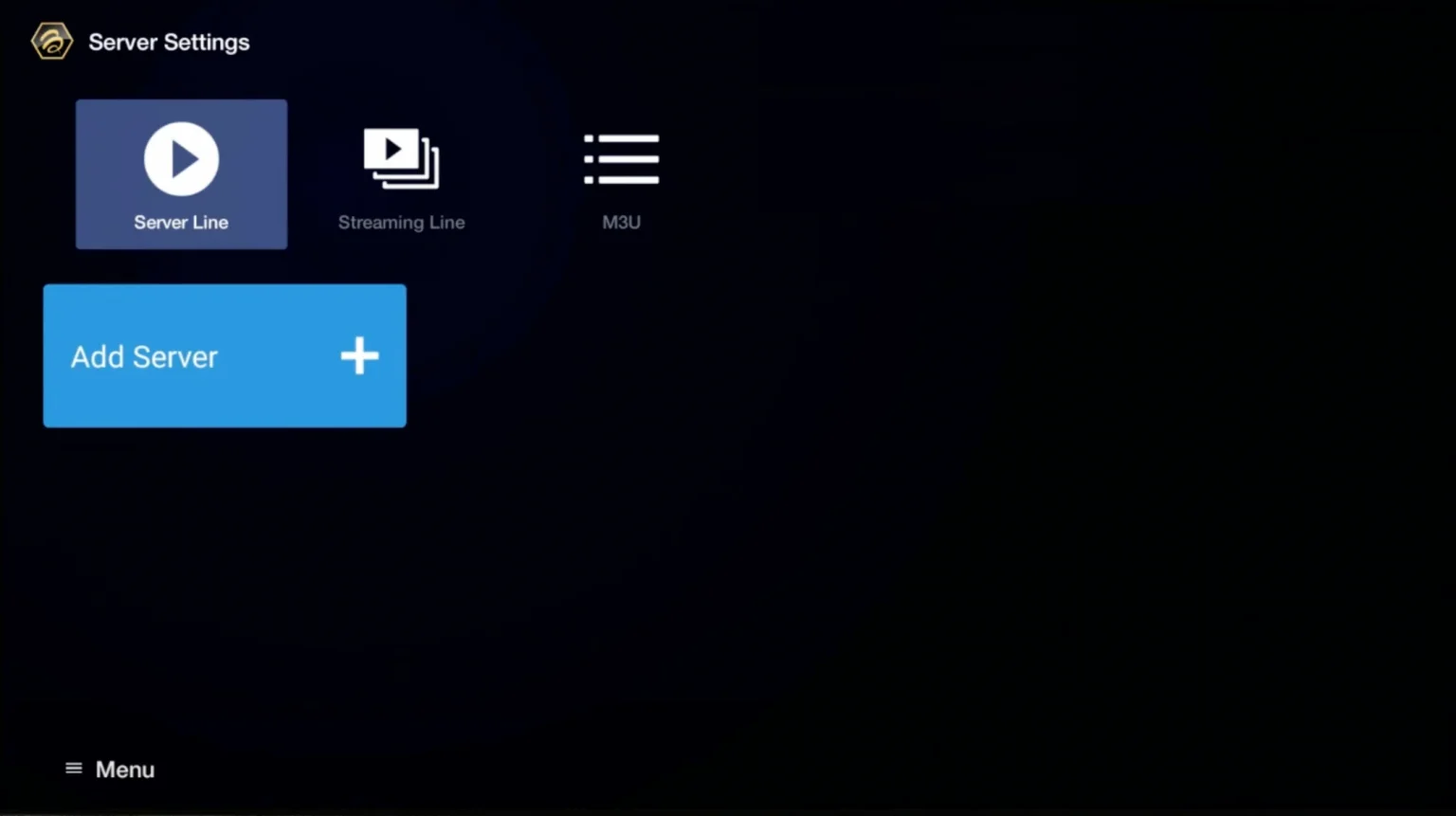
- Go to Live TV > Server Line.
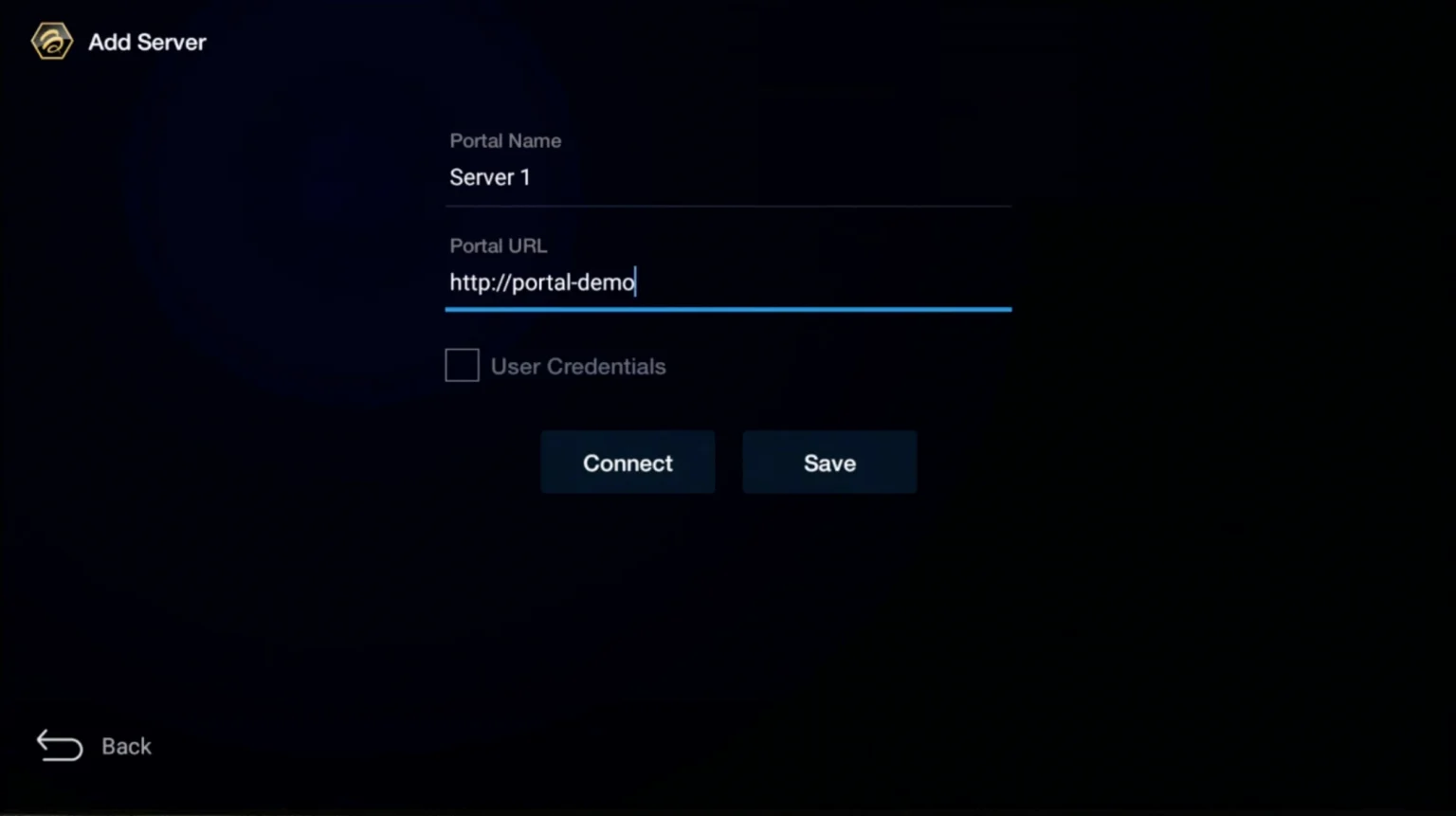
- Select Add Server.
- Server Name:
iThrill. URL:(from email). - Send us your MAC Address.
- Connect.
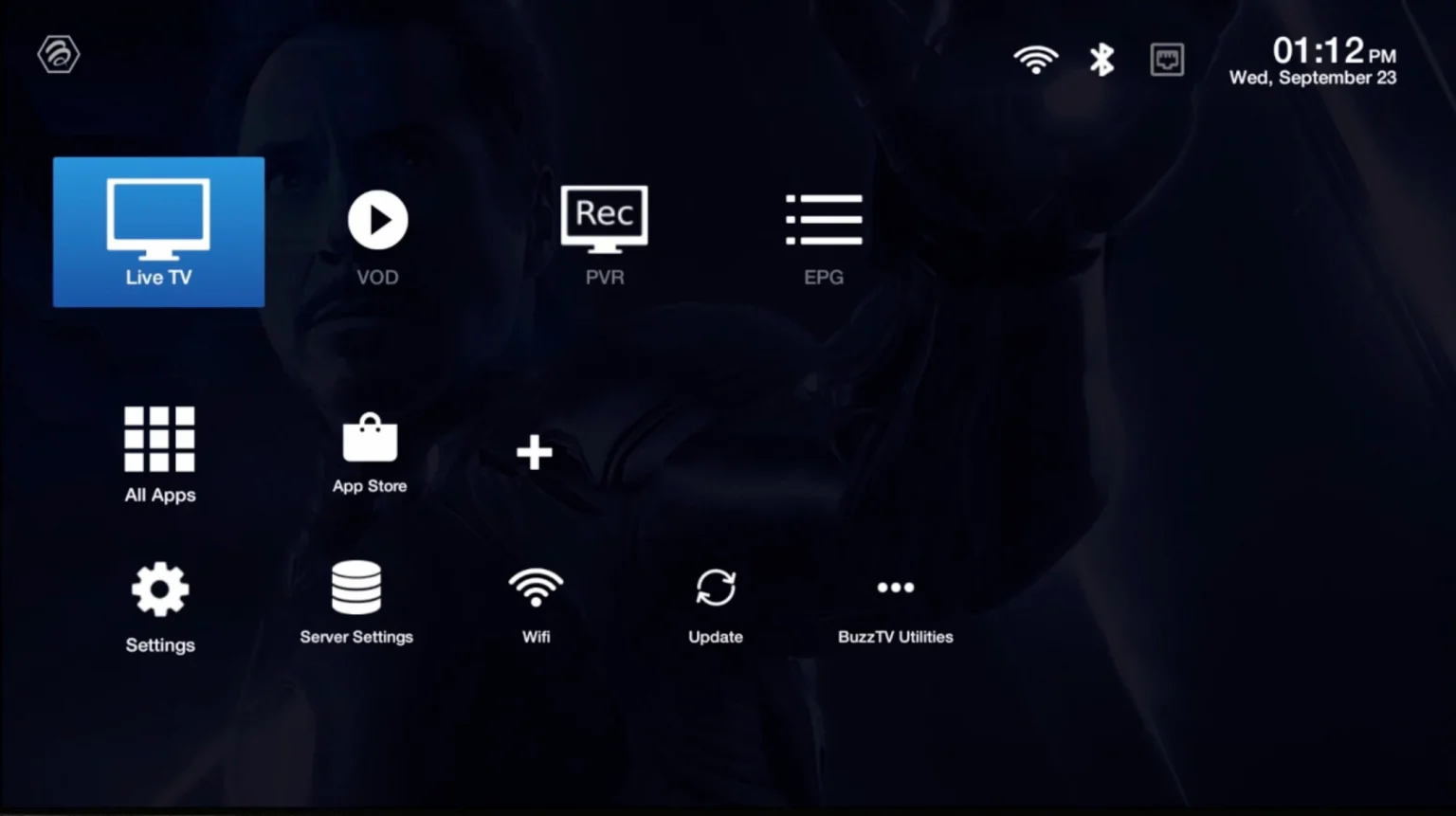
Use Web Video Cast app. Paste your M3U URL, connect to your TV (Chromecast/Roku), and play.